figma, landing page design in figma, conversion optimisation, auto layout, figma handoff
Landing Page Design in Figma: A Conversion-Focused Playbook
by raffiné studio

Most landing pages fail before a developer sees them. The Figma file already contains the problem: one polished desktop composition, a few decorative sections, and no clear way to test whether the message, proof, form or CTA is doing its job.
That approach looks finished, but it doesn't give a marketing team much to learn. Landing page design in Figma should function as a conversion system, with reusable structures, responsive behaviour, named states and deliberate alternatives that make the next decision easier.
Australian teams are ready for this workflow. Figma's 2024 APAC report says 63% of Australian companies increased investment in digital product design over the past five years, and 38% already use cloud-based design and collaboration tools. The same report surveyed 700 businesses across APAC, making the Australian figures a useful regional benchmark for collaborative design practice.
Why Your Figma File Should Optimise for Conversion First
The popular advice is to create one beautiful comp, get approval and hand it to development. That works for a poster. It's a weak process for a lead-generation page.
A service business page has to answer practical questions. What does the visitor need to understand first? Which proof reduces risk? Is the CTA appropriate for someone who's ready to enquire, or does it ask for too much too soon? Can the team test a different headline without rebuilding the page?
A polished static frame answers none of those questions. A conversion-first file makes them visible.

What conversion-first means in practice
Start with a frame architecture that supports decisions, not decoration. Every major container should make it possible to change a message, swap a proof type, alter CTA emphasis or test form friction without redrawing the surrounding layout.
That usually means:
Auto Layout containers that respond when copy changes.
Reusable blocks for hero, proof, benefits, form and CTA sections.
Named component variants for density, emphasis, content length and device behaviour.
Prototype states for hover, focus, error and success interactions.
A clear relationship between each page area and its conversion job.
The Australian context matters. Figma's reporting on Australian design activity says Australian users created nearly 1.2 million Figma files in the past year. That volume points to an established, iterative design ecosystem. The opportunity isn't just to create another file. It's to structure the file so weekly campaign changes don't create weekly production debt.
A useful conversion file lets a designer swap a hero direction or CTA treatment quickly, then compare the alternatives against one page hypothesis. The static comp mindset optimises for approval. The instrument mindset optimises for learning.
For a broader view of the relationship between page structure and enquiry behaviour, Raffine's guide to website design for conversion is a useful companion. The central principle is simple: a page earns its visual complexity by helping a qualified visitor take the next step.
Setting Up the Conversion-First Frame in Figma
Set up the file before drawing the first hero illustration. The initial structure determines whether the page can absorb new copy, mobile changes and test variants without becoming a collection of manually nudged layers.
Create one Figma page named 00-Conversion-Set. Add four working artboards at 375, 768, 1200 and 1440 pixels. Use a 12-column grid on the 1200-pixel layout, with 24-pixel gutters and 80-pixel outer margins, then build the spacing rhythm around 8-pixel units.

Build the page as a hierarchy
The top-level frame should use vertical Auto Layout, hug its vertical contents and fill the available horizontal space. Inside it, create three nested sections:
Above the Fold, containing navigation, the hero and the first proof signal.
Proof, containing credibility, outcomes, testimonials and supporting evidence.
Conversion, containing the form, booking action, reassurance and footer.
This structure gives every section a clear home. You can reorder a proof block or test a different hero without manually repositioning everything below it.
Figma's Auto Layout guide explains why this matters. Auto Layout can rearrange elements when content is changed, added, removed or resized, using direction, spacing, padding and alignment rules. That behaviour is particularly valuable when a professional-services headline grows by a line or a form label needs clarification.
Create a second page named 01-Blocks. Keep atoms and components there, including:
Buttons with primary, secondary, hover, focus and disabled states.
Form fields with default, focus, error and success states.
Proof cards with controlled content lengths.
Hero layouts with different CTA and image arrangements.
Section shells with consistent spacing and responsive behaviour.
Use local variables for Primary, Muted, Surface and the CTA accent. Name spacing tokens instead of entering manual padding values. A file that will absorb regular landing-page tests shouldn't rely on someone remembering which layer received an arbitrary adjustment three weeks ago.
For Figma Sites work, Figma's responsive webpage guidance recommends top-level frames for each section, a primary breakpoint such as Desktop and vertical Auto Layout where appropriate. That structure also translates cleanly into a developer handoff because the visual hierarchy reflects the eventual page hierarchy.
The Copy, Proof and CTA Blocks That Convert
A conversion page earns enquiries by answering objections in sequence. Each frame, component state and content slot in Figma should support one measurable decision, not fill space below the hero.
For an Australian professional-services page, start with eight reusable blocks:
Headline and sub-head, naming the audience, outcome and point of difference.
Primary CTA, presenting one clear action instead of competing requests.
Proof bar, showing three relevant logos, credentials or recognisable trust signals.
Problem-solution block, explaining the commercial problem and response concisely.
Three benefit rows, each pairing an icon with a benefit headline and short description.
Testimonial card, using a real person, context and an outcome where available.
Primary form, asking for name, work email and company when those fields qualify the enquiry.
Secondary CTA strip, offering a lower-friction next step to hesitant visitors.
Put the blocks in risk order. Australian conversion guidance from Campaigns You Love reports that dedicated landing pages can outperform homepage traffic by 2 to 5 times, while mobile pages convert materially worse than desktop. It also cites up to 13.5% conversion for pages with a single CTA, compared with 11.9% for pages with multiple competing CTAs, and associates reducing form fields from 11 to 4 with a 122% uplift.
Use those figures as test inputs, not instructions to copy a benchmark. A consultation page should not place a newsletter subscription, PDF download and phone call beside the main action unless each serves a distinct audience and can be measured separately. In Figma, represent that choice through named variants, so the file records which CTA configuration the team is testing.
Map each block to a testable job
Build every block as an Auto Layout component with left, right and bottom slots. Add properties such as Density, Emphasis and Proof-Tier. A service firm can then compare a compact proof bar with a testimonial-led version without changing the page shell.
Block | Job on Page | AU Benchmark to Beat |
|---|---|---|
Headline and sub-head | Establish relevance immediately | Dedicated landing-page performance, 2 to 5 times homepage traffic |
Single primary CTA | Remove decision conflict | Up to 13.5% for a single CTA versus 11.9% for multiple CTAs |
Proof bar | Reduce perceived risk before the visitor scrolls | Place proof early because mobile performance is materially weaker |
Problem-solution copy | Connect the offer to a commercial pain | Keep the message specific rather than adding decorative copy |
Benefit rows | Make the outcome scannable | Support clarity without creating competing actions |
Testimonial card | Add human evidence | Use real context and available results only |
Primary form | Capture a qualified enquiry | Reducing fields from 11 to 4 has been associated with a 122% uplift |
Secondary CTA strip | Catch visitors not ready for the main action | Keep it subordinate to the primary conversion path |
Use controlled text lengths inside proof cards and testimonials. A short outcome field, a context field and a source label make content changes visible in the component rather than allowing unpredictable copy to distort the layout.
For comparisons across industries, Raffine's collection of landing page examples is useful. Borrow the block system, then validate the decision behind it. A buyer's agency, law firm and finance broker may share the same structure, but their proof requirements, objections and qualification questions will differ.
Building Responsive Variants Without Rebuilding the Page
Responsive design shouldn't mean maintaining three disconnected pages. Create one Auto Layout master frame, then use component variants to express how the layout changes at 1440 desktop, 768 tablet and 390 mobile.
Start with an outer page frame that hugs its contents. Inside it, create a content frame with horizontal Auto Layout and wrap enabled where a row needs to reflow. Give each major row its own container, then let breakpoint variants change the gap, padding, alignment and direction.

Let components control the reflow
Nest the hero, proof strip, feature grid and footer as components. The desktop hero might place copy and visual content side by side. The mobile variant can stack them, change alignment and reduce spacing without becoming a separate drawing.
Use constraint pins for elements that need predictable anchoring, and use min and max widths for content that shouldn't become unreadably wide. Every text layer belongs inside a styled component with explicit width behaviour. A free-floating text box is an invitation to discover a layout failure after development has started.
Figma's Auto Layout system updates the surrounding arrangement as content changes, but only when the parent hierarchy is configured properly. Common traps include fixed-height parents that clip longer copy, hug containers that don't accommodate overflow and hero backgrounds missing a fill rule. These errors often look acceptable in the first desktop frame and fail as soon as the headline or mobile content changes.
Use realistic copy while testing. Placeholder text conceals the very conditions that make responsive pages fail, especially long business names, qualification questions and proof statements.
After the master frame is stable, test each variant with the actual page content rather than a short sample headline.
A useful working rule is that a breakpoint should change behaviour, not merely scale the desktop artwork down. On mobile, inspect the CTA position, proof visibility, form sequence, tap targets and the order in which information appears. That is where the conversion decision often changes.
Handoff, Specs and Iteration Loops With Developers
Dev Mode handoff is a contract between the Figma file and the deployed page. It isn't a screenshot dump with a request to “make it responsive”.
Name layers semantically. Hero/Headline, Form/Field/WorkEmail and Button/Primary/Default tell a developer what an element does. Rectangle 42 and Group 17 don't. Map component tokens to the CSS variables or framework tokens used in the build, whether the implementation uses Tailwind or a custom CSS system.
The file should make these decisions obvious:
Spacing: Use the 8-point scale and identify exceptions instead of hiding them in redlines.
Colour: Define semantic tokens such as
surface/primary,text/mutedandborder/subtle.Typography: Publish text styles with names such as
headline/mdandbody/lg.States: Link hover, focus, error and success prototypes where interaction changes the layout.
Readiness: Mark individual components ready for development rather than labelling an entire page ready while details remain unresolved.
Add redlines only when a token doesn't communicate the requirement. Include a short Loom when the developer needs to understand conversion intent, such as why a form must remain visible beside the hero or why a secondary CTA can't receive equal visual weight.
Make the loop short enough to learn
A practical cadence is:
Design push on Monday.
Developer review on Tuesday.
Traffic to the page by Wednesday.
Results reviewed the following Monday.
The next design decision based on what the page has revealed.
The exact schedule will vary, but the principle holds. The Figma file should help marketers brief copywriters and media buyers without paging the designer for every small adjustment. Include approved message options, ad-to-page relevance notes, audience variants and the tracking intent for each CTA.
A page that can't be explained outside the design team is difficult to improve. A well-organised file lets development, marketing and sales work from the same conversion logic.
Designing Variants Instead of One Final Comp
Shipping one polished comp is often the most expensive design decision on a lead-generation campaign. The page may look excellent, but if the headline, proof position or form treatment doesn't work, the team has to return to design, development and QA before it can learn anything.
Australian benchmark guidance makes the commercial trade-off clear. PMG's Australian landing-page guidance cites eCommerce conversion rates around 1.5% to 2.5%, links a 5-second to 2-second page-load improvement with a 45% uplift, and notes that each additional second of delay can reduce conversions further. The same source discusses 5% to 15% conversion ranges for service-business lead-generation pages, while homepage traffic is cited at 1% to 3%.
These aren't universal targets. They are prompts to design for a measurable hypothesis. A finance broker might test a shorter enquiry form against a more qualifying version. A buyers agency might test customer logos above the fold against a concise client quote. A law firm might compare a consultation CTA with a matter-specific assessment CTA.
Build variants around one question
Create two or three structural variants per important section, then place them in a single Figma component set. Useful examples include:
Hero with proof above the fold versus hero with the proof below the first content block.
Single CTA hero versus hero with a visible lead form.
Short form versus longer qualification form.
Logo strip versus testimonial quote.
Benefit grid versus problem-solution narrative.
Don't vary everything at once. If the page tests headline, form length, proof type and CTA wording simultaneously, the result becomes difficult to interpret.
Approach | Design Effort | Dev Cost | Time to First Result | Typical CPL Impact |
|---|---|---|---|---|
Single polished comp | Lower upfront effort | One implementation, limited flexibility | Slower when changes are needed | Depends on the untested page |
Structural variants | More upfront design work | Higher initial setup, reusable test paths | Faster comparison after launch | Depends on the hypothesis and traffic quality |
Ad hoc post-launch changes | Appears low initially | Repeated rework and QA | Unpredictable | Can improve or worsen without clean attribution |
The strategic argument is stronger than the visual one. A variant file may take longer to design, but it compresses future testing into a planned system rather than a series of emergency revisions. If a section can't be split into at least two justifiable alternatives, ask whether it is doing conversion work or merely filling the page.
For a practical funnel structure, Raffine's sales funnel landing page template provides a useful reference point. The Figma version should preserve the same logic, while making the alternate paths visible to development and marketing.
A Pre-Handoff Checklist for Landing Page Design in Figma
Run this checklist inside the file before sending it to a developer or media buyer. Each item should result in a concrete Figma action, not a general feeling that the page looks tidy.
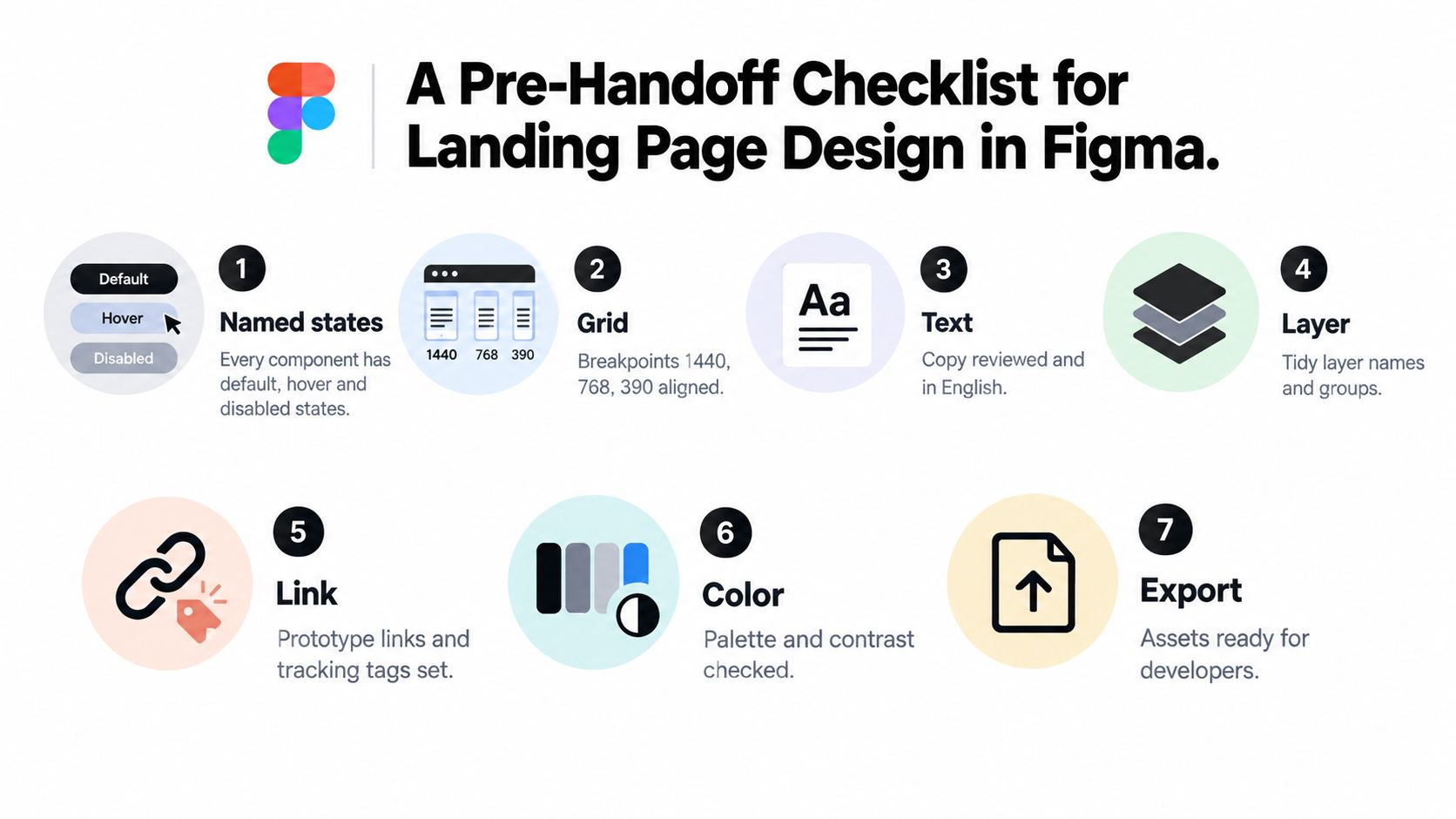
Seven checks before sharing the file
Name every component state. Open each component set and confirm it includes the relevant
default,hover,focus,errorandsuccessstates. Keep those variants inside one component set, not scattered across unrelated frames.Make Auto Layout behaviour explicit. Select each container and confirm its direction, width and height behaviour. Use fixed or hug settings deliberately so engineers don't have to infer how spacing should respond.
Check the 8-point rhythm. Inspect margins, padding and gaps for accidental values such as 13 or 17 pixels. If an exception is necessary, annotate it and explain why.
Publish semantic text styles. Replace unnamed text layers with styles such as
body/lg,body/smandheadline/md. Copy should be reviewed in the actual component, not hidden in a detached text box.Test mobile instances in the same system. Verify the mobile breakpoint renders through the same component instances and responsive variants. Don't maintain a duplicated file that can drift from the primary design.
Bind colour and elevation to intent. Use variables named
surface/primary,text/muted,border/subtleand similar semantic terms. Check contrast with Figma's accessibility guidance, which covers descriptive alt text, decorative elements, correct HTML tags, labels and the colour contrast tool.Add a Dev Mode annotation pass. Mark the primary CTA, explain form-field intent and identify conditional sections for ad traffic or audience variants. Include prototype links for meaningful interactions and confirm assets are ready for export.
A landing page isn't ready because its layers are aligned. It's ready when another person can understand what the page is trying to achieve, how it should respond and which parts are safe to change.
Raffine Studio designs Figma systems for conversion-focused websites, landing pages and lead-generation funnels, including responsive page structures, developer-ready components and measurement-led iteration. If your current page looks polished but isn't producing enough qualified enquiries, visit Raffine Studio to review how the design, traffic and follow-up path can work together.